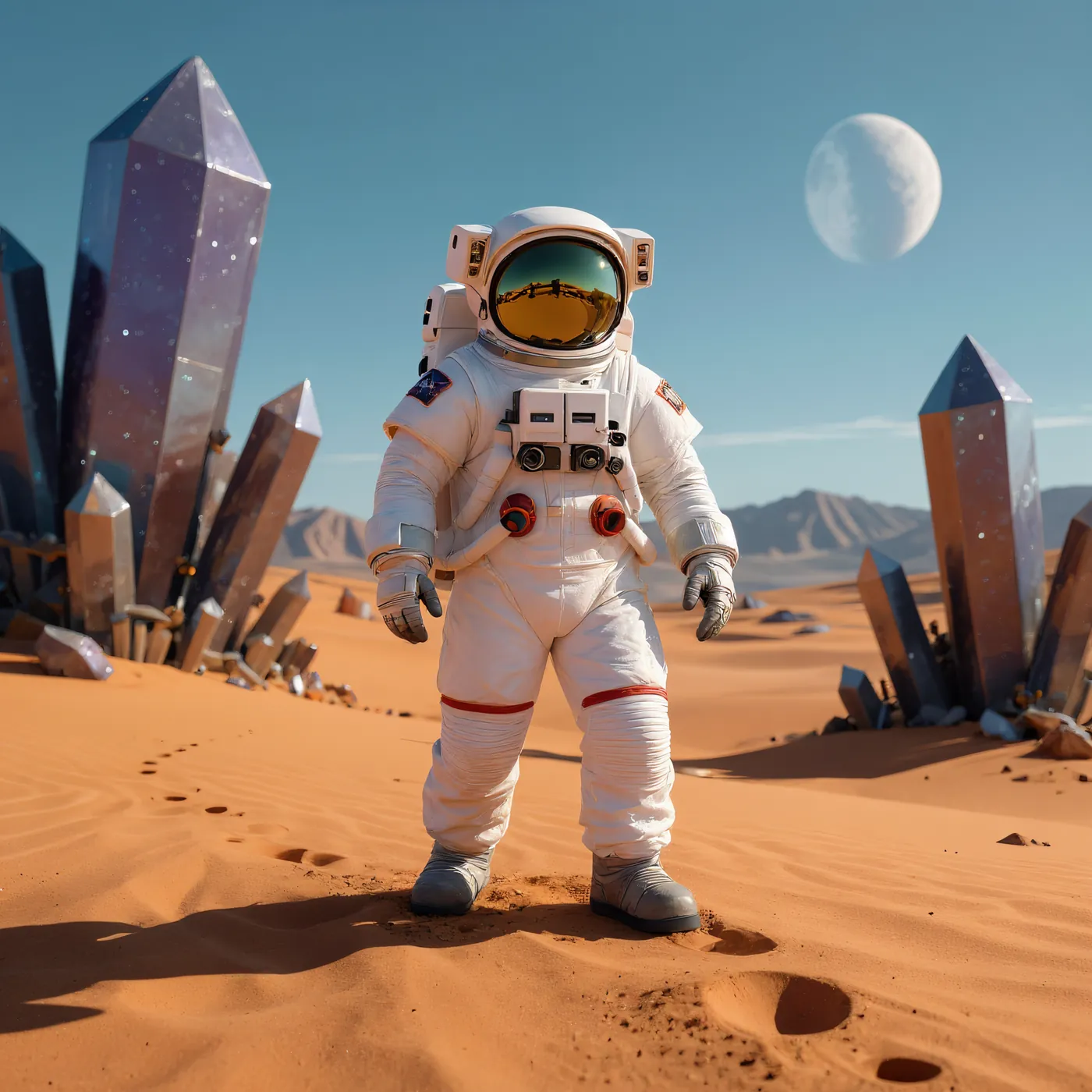
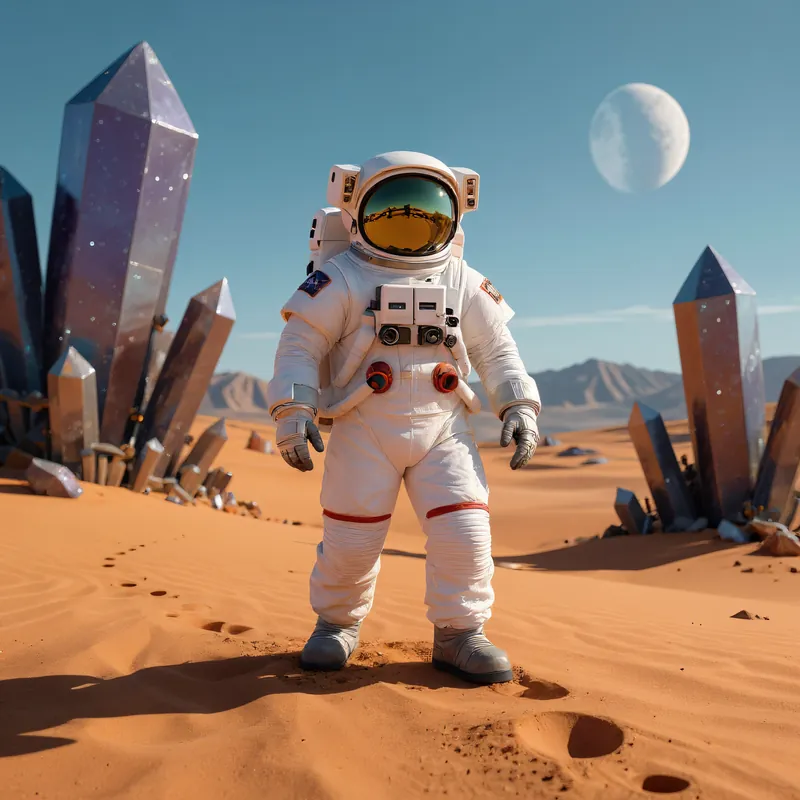
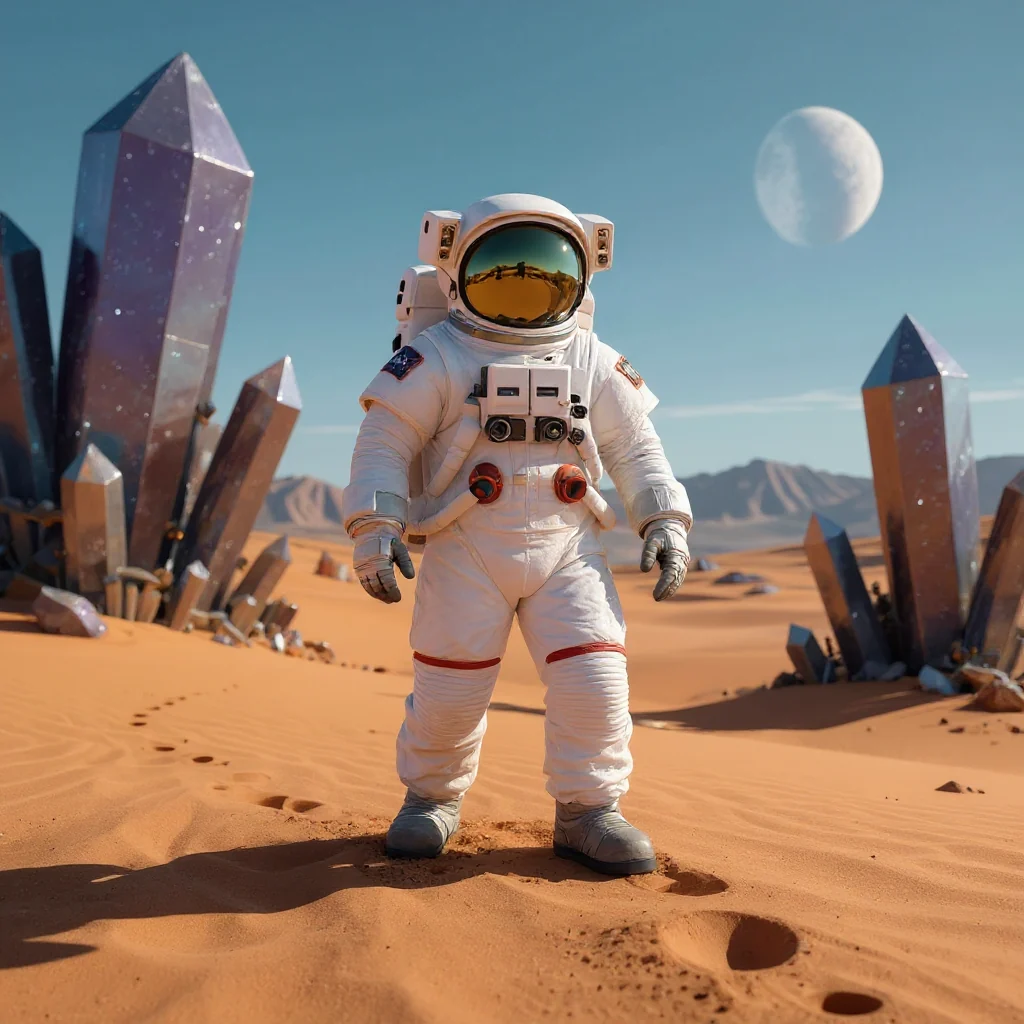
The whole image, enlarged
The full photo at higher resolution edge to edge, not just the spot you would zoom into.
Improve quality online
Upload a small or pixelated image and Editasteic builds a higher-resolution version. The AI generates edges and texture as it enlarges the image, so the result looks more defined instead of stretched. Download it as a PNG, with no watermark.
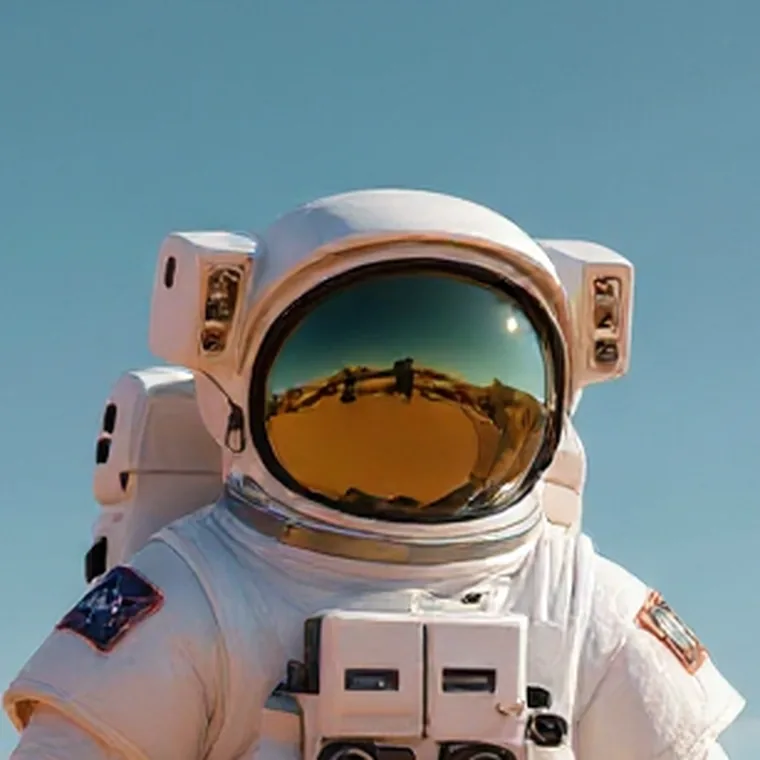
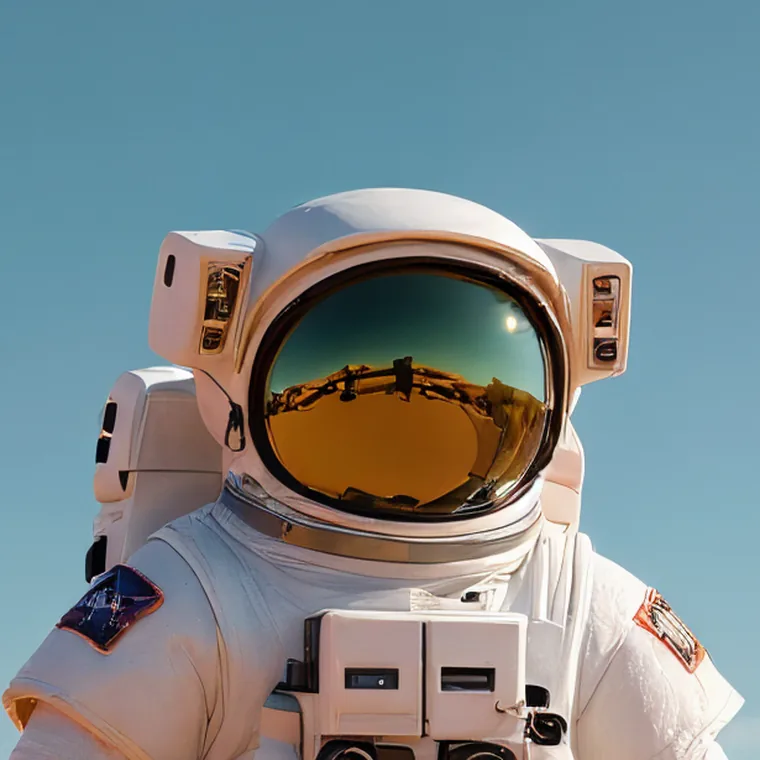
A 1:1 crop of the helmet. As it enlarges, the AI generates the visor reflection and the panel edges with more definition than the smaller file had.
Editasteic increases the image's pixel dimensions and uses AI to generate edges and texture in the process, rather than simply stretching the image.
On compatible images, the detail the model generates smooths the jagged edges of a small or heavily compressed photo. How much it improves depends on what is in the source file.
Set the enlargement factor between 1× and 4× (2× by default). You also control how closely the result sticks to the original and how much room it has to reinterpret it.
The result is generated as a PNG and downloads when processing finishes. Editasteic adds no watermark.
Both views come from the same enlargement, shown two ways so the difference is easy to judge.
The full photo at higher resolution edge to edge, not just the spot you would zoom into.
The visor and helmet panels at 100%, where the generated texture is easiest to see.
Open the tool and sign in, then add a JPG or PNG from your device.
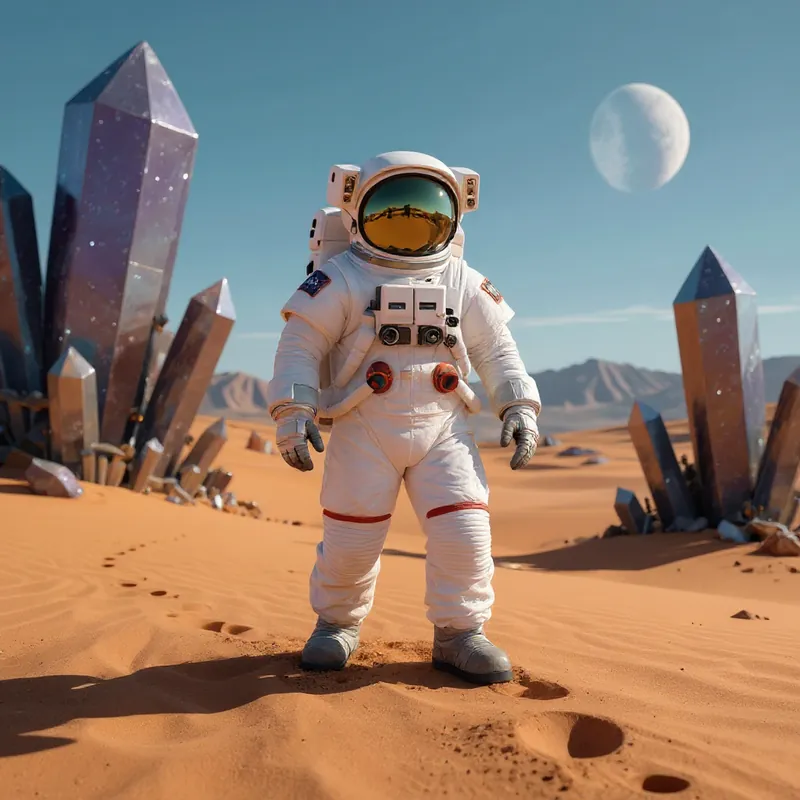
Editasteic increases the image's resolution and generates edges and texture across the whole frame. Choose the enlargement factor before processing.
Check the result at full size and download the image as a PNG.
A short capture of the tool working inside Editasteic, from the small original image to the enlarged version.
Small or pixelated images · Images for print · Content for social media
The most natural use: a thumbnail, a heavily compressed download, or a small export you need at a larger size.
Increase the resolution of a small image before using it in a larger print.
Push a small image up to the size a feed, a thumbnail, or a cover expects.
Open Editasteic's tool in your browser, sign in, and upload your image. The AI increases the resolution and generates edges and texture, and when it finishes you download the result as a PNG.
No. The enlarged version has more pixels, but the added detail does not come from the original file: the model generates it by interpreting the image you upload. It is a plausible reconstruction, not a reading of information that was hidden in the photo.
It can reduce the pixelated look of a small or heavily compressed image. The model generates new detail to smooth the jagged edges, so the result varies with what the file contains: it does not always turn a pixelated image into a sharp one.
The factor multiplies the width and height: at 2× the image is twice as wide and tall, and at 4×, four times. Above 2× the process runs several internal passes. 2× is the default; a higher factor does not always give a better result.
Yes. Because the detail is generated, the model can reinterpret textures, lettering, or small features, especially at high factors or with creativity turned up. The resemblance control keeps the result closer to the original.
Always PNG. The tool generates the result in that format; there is no output format selector.
No. The result downloads with no watermark.
Improving an image costs 3 credits, and the cost does not change with the factor or the size. The cost and your balance are shown in the app before you run it. New accounts start with 50 credits.
Yes, within limits. When you create your account you get 50 credits and no card is needed to use them. Each enhancement costs 3 credits, so you can try the tool several times. Once they run out, you buy one-off packs; it is not an unlimited, free service.
Yes, to increase the resolution of a small image before a larger print. The result depends on the original and is not the same as a photo taken at that resolution, so we do not promise a DPI or a guaranteed maximum size.
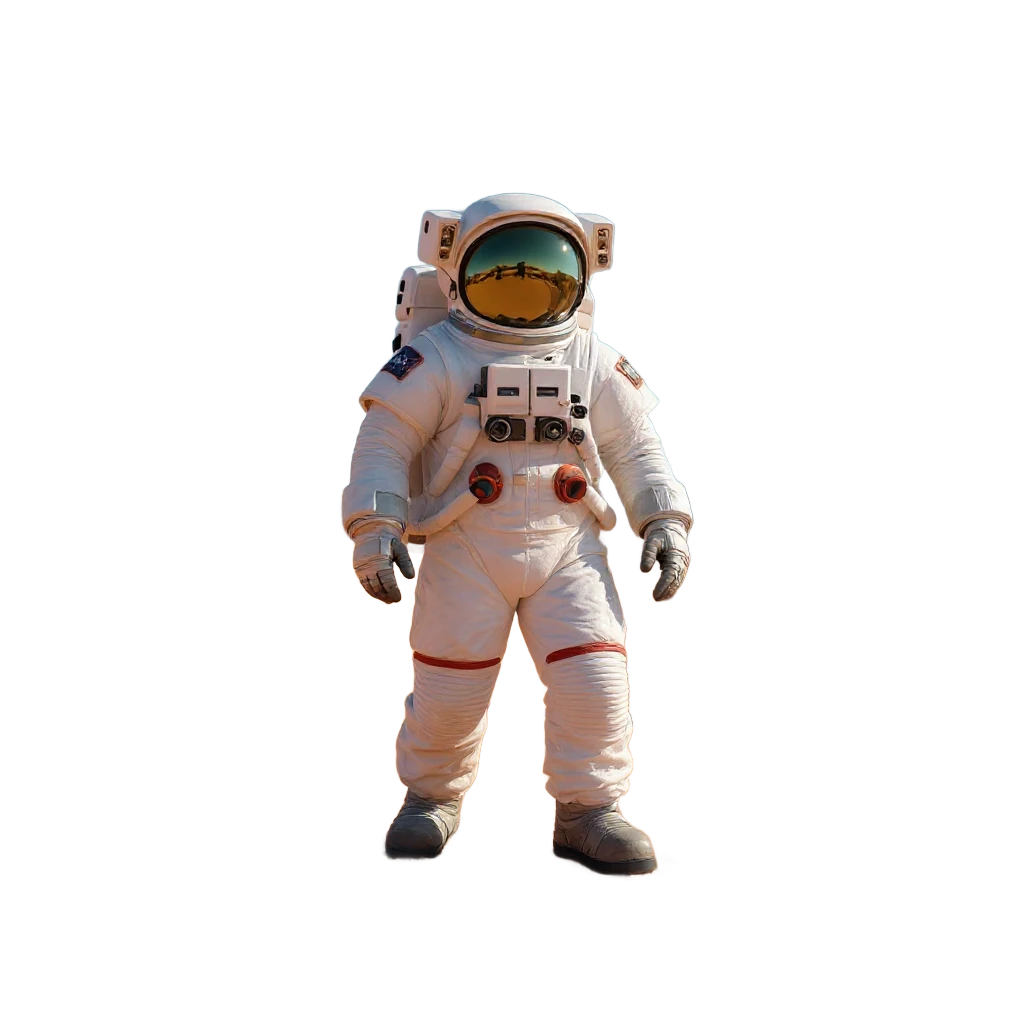
Cut the subject out first, then enlarge it to the size you need.
Remove a background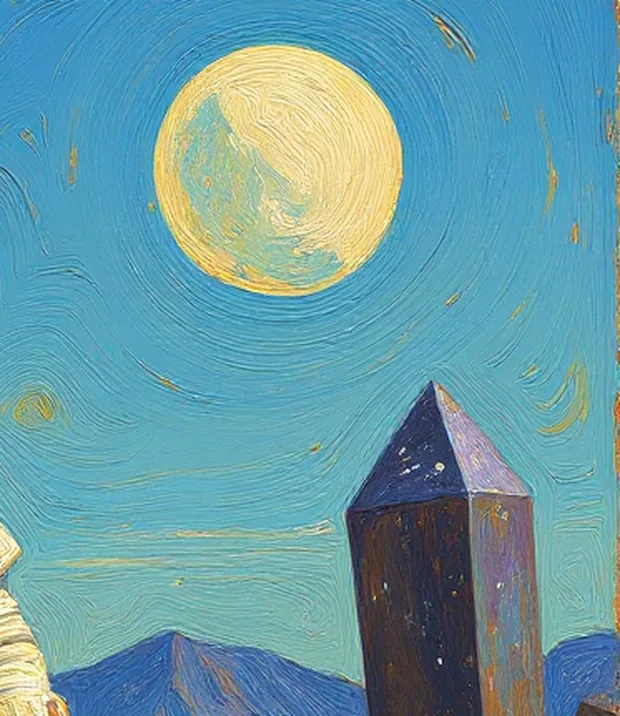
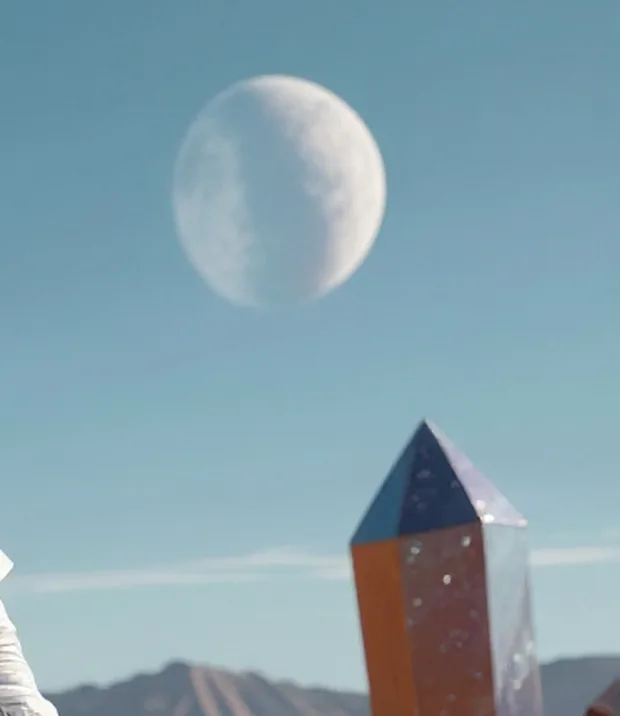
Change the visual style of the image you just enlarged.
Change the style
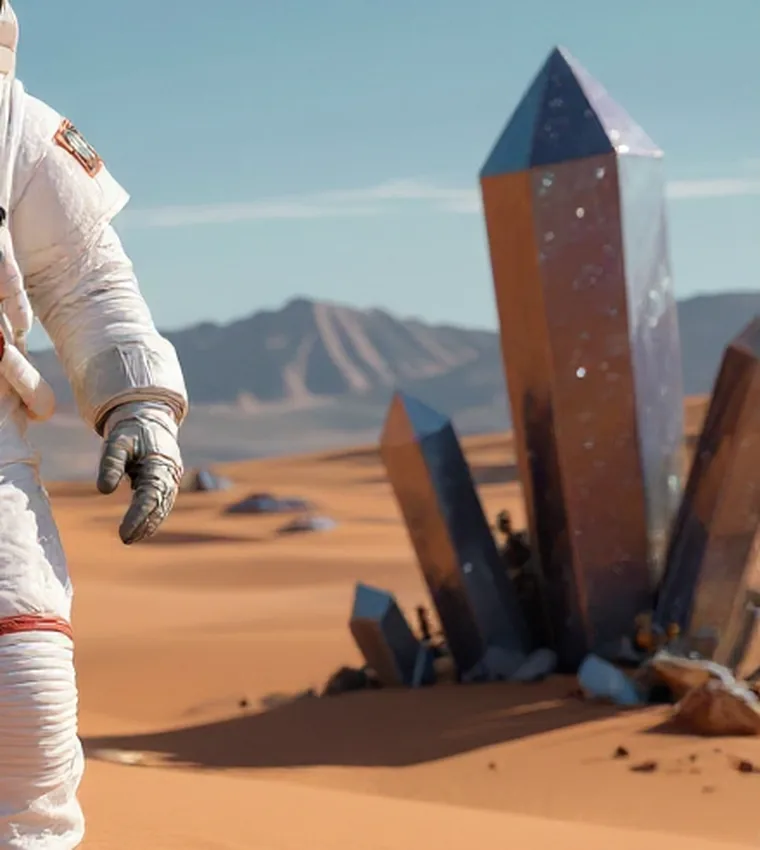
Open the tool, upload a small image, and download a higher-resolution version as a PNG.
Improve an image