
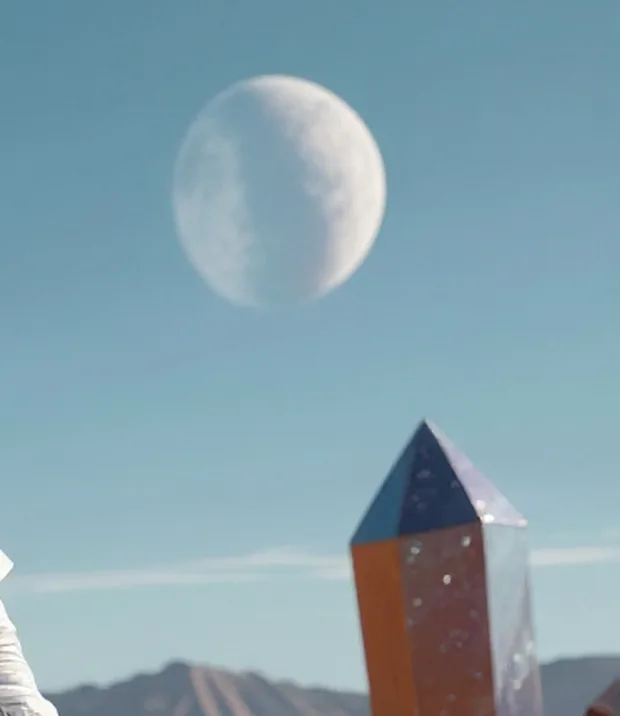
The replacement in the full photo
The ship appears in place of the crystals within the complete frame.
Remove objects online
Upload a photo and remove the object that does not belong. Describe what you want to remove in Assisted mode, or mark one or more areas in Manual mode. Editasteic generates new content based on the context of the image and lets you download the result as a PNG.


A real replacement: the crystals on the right were changed into a ship. The tool can also remove objects; in both kinds of edit it generates new content based on the context of the photo.
When you erase an element, Editasteic generates new pixels using the context of the photo. The fill is a plausible interpretation, not a recovery of the original background hidden behind it.
Choose Add, Remove, or Replace and write what you want to change. The AI interprets the instruction on the image without requiring you to draw a mask. Each Assisted edit costs 25 credits.
Use the brush, rectangle, circle, or polygon to mark one or more areas and describe what should be generated there. Each Manual edit costs 10 credits.
Besides removing objects, you can request another element, add a new one, or change the content of a region. The result depends on the image, area, and instruction.
Both views show the same real replacement. They are not a removal demonstration: they show how Editasteic generates a new element within an existing scene.
The ship appears in place of the crystals within the complete frame.
A 100% view of the new element and the content generated around it.
Open the tool, sign in, and add the image you want to edit from your device.

Use Assisted mode if you prefer to describe the change without a mask, or Manual mode if you want to mark one or more areas.
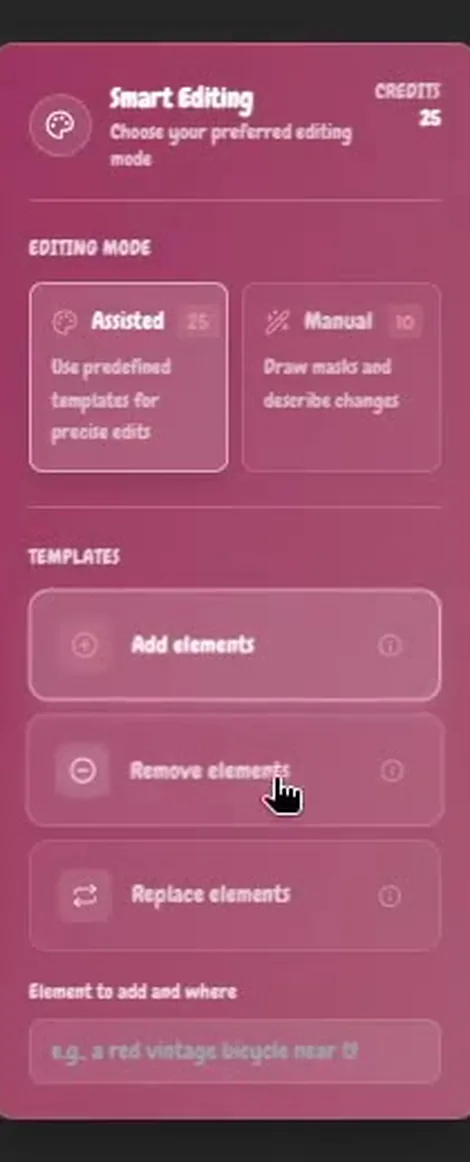
Choose Add, Remove, or Replace and write the element and change. The AI interprets the instruction on the image without requiring a mask. It costs 25 credits per edit.
Draw with a brush, rectangle, circle, or polygon; you can mark several areas. Then write what should be generated in the region. It costs 10 credits per edit.
Editasteic generates the result from the photo and your instructions. Review it in the editor and download it as a PNG.

A real Editasteic recording: choosing Replace, describing the change, and comparing the crystals-to-ship result. The video shows Assisted mode, not a removal or a manual mask.
Unwanted objects · People in the background · Replace elements · Add or modify elements
Remove a distraction, an accidental object, or something in the background that pulls attention away from the photo.
Describe the person you want to remove or mark their area manually. The result depends on the background and how much space the model needs to generate.
Swap one object for another you describe, as in the real crystals-to-ship example.
Add something new to the photo or mark a region to generate different content there.
Open the tool, sign in, and upload your photo. In Assisted mode, describe the object to remove; in Manual mode, mark one or more areas and write what should be generated. Review the result and download it as a PNG.
Yes, as a general removal. There is no dedicated person detector, and the result depends on the background, the size of the area, and the available context; shadows or reflections may need another edit.
Yes. Assisted mode includes Add and Replace, while Manual mode lets you mark where to generate the new content. The model interprets the photo and instruction, so the result can vary.
In Assisted mode, you describe the change and the AI interprets the instruction on the image, without a mask. In Manual mode, you mark one or more regions and add a prompt for what should be generated there.
You can draw with a brush, rectangle, circle, or polygon and mark several areas. The mask indicates the region you want to regenerate; it does not guarantee that the rest stays pixel-for-pixel identical.
Editasteic generates new content using the elements around the area as context. It is a plausible fill created by the model, not the original background that was hidden behind the object.
Yes. Both modes are generative and can reinterpret details, especially in large areas, ambiguous backgrounds, or Assisted mode. Always review the result.
A Manual edit costs 10 credits and an Assisted edit costs 25. The app shows the cost and your balance before processing.
Yes. You must sign in before uploading the image and running the edit.
Yes. New accounts receive 50 credits, and no card is required to use them. That covers five Manual edits, two Assisted edits, or an equivalent mix; it is not an unlimited free service.
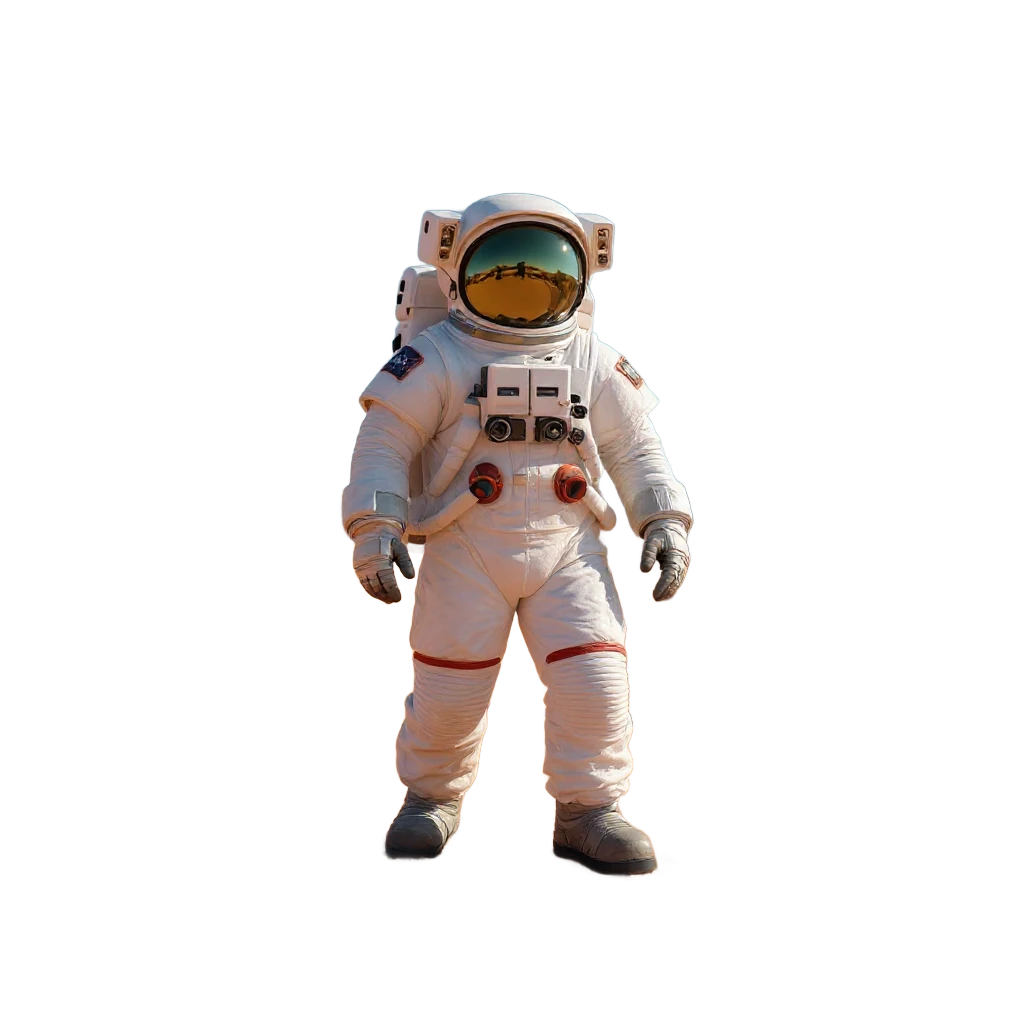
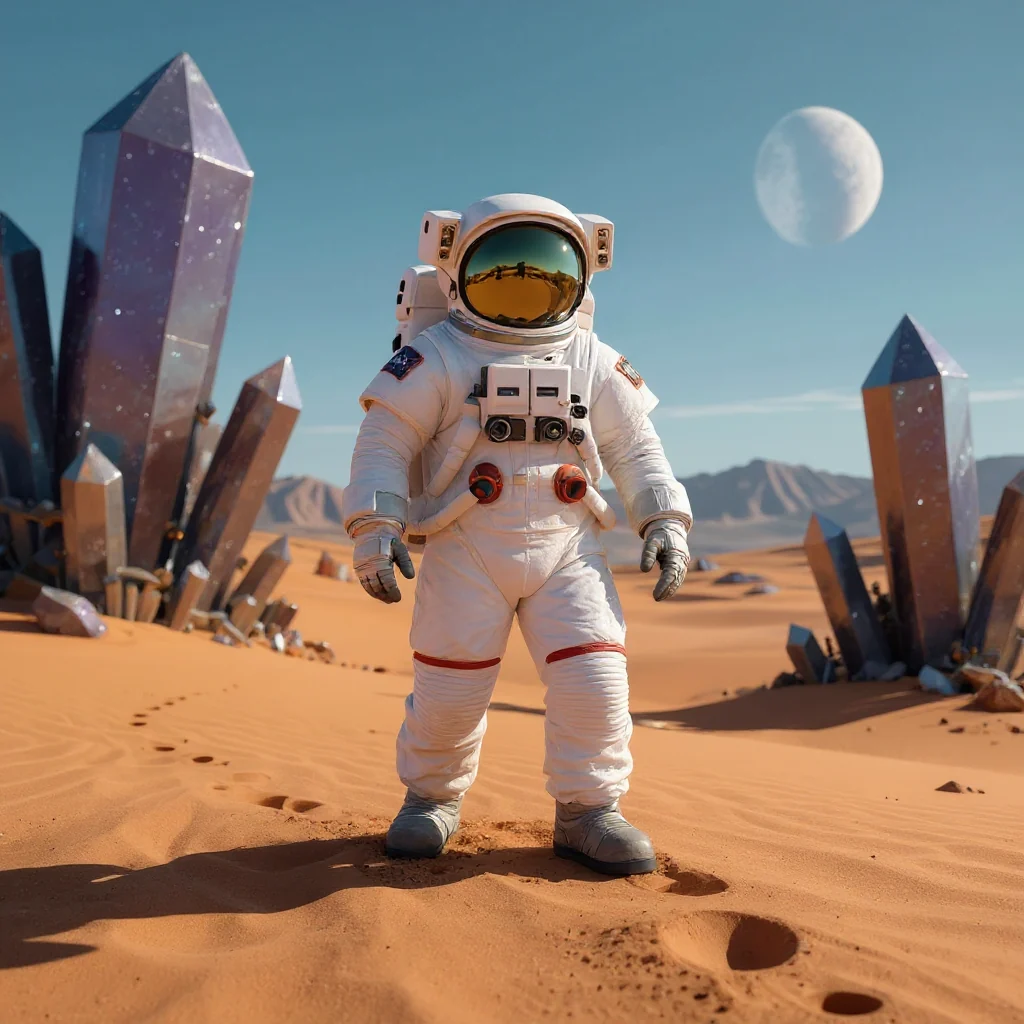
Remove the whole background when you do not want to edit a single element in the scene.
Remove a background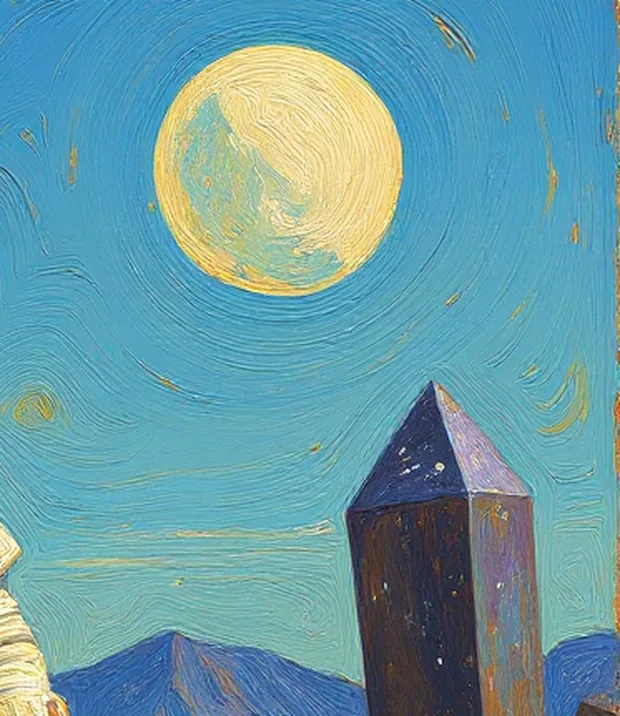
Generate a new version of the whole photo in another style instead of editing one element or area.
Change the style
Generate a new image with the text translated into another language.
Translate an imageOpen the tool, choose between describing the change or marking the area manually, and download the result as a PNG.
Remove an object